

Docs/ Custom Migrator
Choose what to track
The DocType Configuration table in Migrator Settings decides which record types show on the Custom Migrator page.
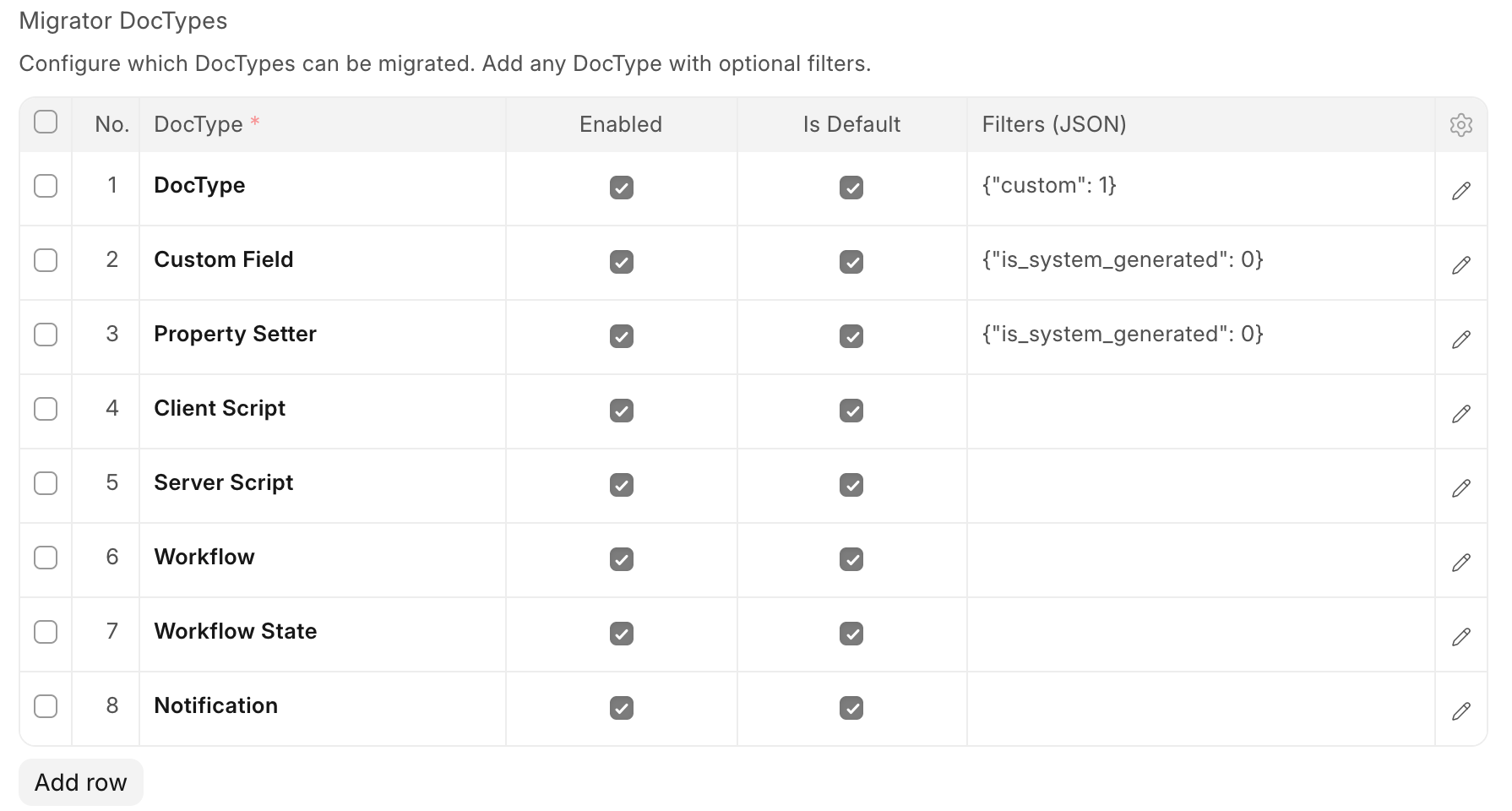
The defaults
| DocType | Default filter | Why |
|---|---|---|
| DocType | {"custom": 1} | Only DocTypes made in Desk, not ones from apps |
| Custom Field | {"is_system_generated": 0} | Skips fields apps create for themselves |
| Property Setter | {"is_system_generated": 0} | Same |
| Client Script | none | |
| Server Script | none | |
| Workflow | none | |
| Workflow State | none | |
| Notification | none |
To stop tracking a default type, untick Enabled. Don't delete the row: default rows come back every time bench migrate runs. Is Default is set by Custom Migrator and can't be changed.
Filters
Filters (JSON) narrows a type down to the records you care about. It takes the same format as a Frappe filter object:
{"module": "Acme ERP"}{"dt": ["in", ["Sales Invoice", "Sales Order"]]}A filter is tested when you save. A bad field name, invalid JSON or anything that isn't an object stops the save with a message saying which row is wrong.
TIP
ERPNext ships its own notifications and workflow states. If they clutter the list, filter by module, or turn on Hide Already Migrated on the page, which hides records that come from other installed apps.
Add more types
On the Custom Migrator page, click + Add next to DocTypes in the sidebar, pick a DocType and optionally give it a filter. Or add a row to the table in Migrator Settings.
Anything you add is exported to fixtures/<doctype>.json in your app. Check that it's applied correctly on another site before you rely on it.