

Appearance
Restore DB from Backup
Every backup and restore operation for an Espresso-hosted site runs from Espresso Cloud Site Management — no SSH or bench commands required. You can enable automated on-site backups, trigger a manual snapshot, and download backups to your local machine. To restore, upload the backup files from your computer — Espresso does not offer a one-click restore from a retained on-site snapshot.
For off-site copies in S3 or other object storage, see Offline Backup via S3.
Overview
- Site Management action bar — where backup and restore controls live.
- Configure on-site backups — daily automated snapshots with a retention period.
- Take a manual backup — run an immediate snapshot with Backup Now.
- Download a backup — save snapshot files to your local machine.
- Restore a backup — upload backup files from your computer (on-site downloads, S3, or another source).
Site Management action bar
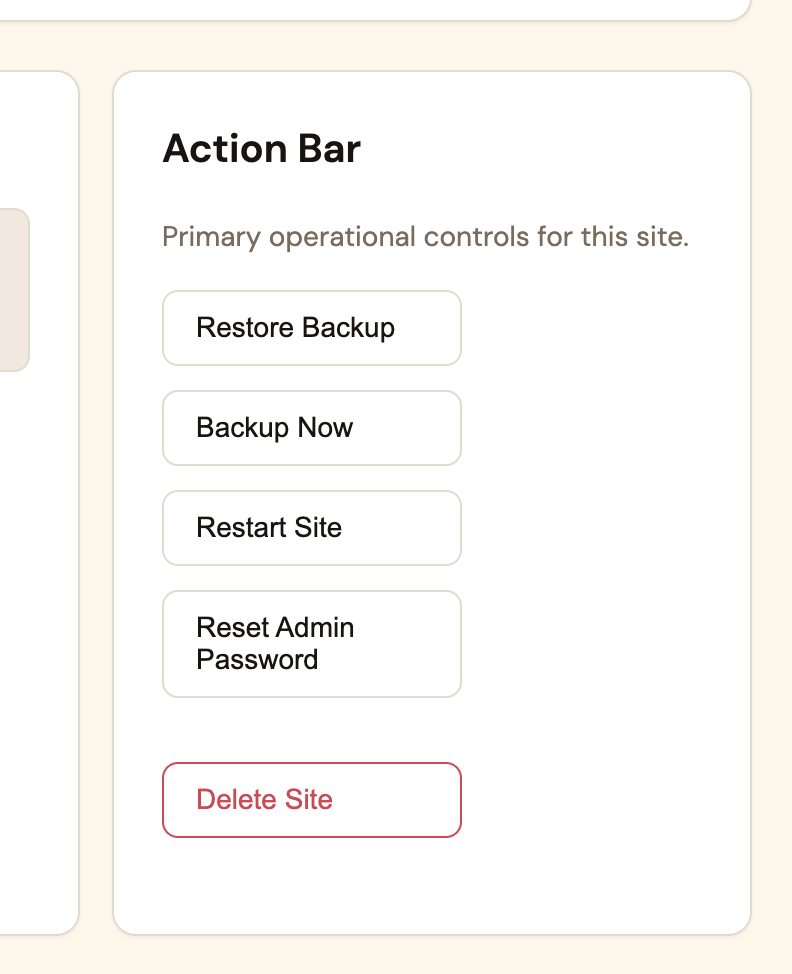
Open any site in the Espresso Cloud dashboard to reach its Site Management page. The Action Bar holds the primary operational controls:
| Action | Purpose |
|---|---|
| Restore Backup | Upload backup files from your computer to roll back the site. |
| Backup Now | Take an immediate on-site backup outside the daily schedule. |
| Restart Site | Restart the site containers without changing data. |
| Reset Admin Password | Reset the ERPNext Administrator password. |
| Delete Site | Permanently remove the site and its data. |
Configure on-site backups
On-site backups are stored on the same server as your site. They give you recent snapshots you can download and upload when you need to roll back after a bad deploy, accidental data change, or application error.
- Open your site in the Espresso Cloud dashboard.
- In Site Management, find the on-site backup settings.
- Enable daily on-site backups.
- Set a retention period — snapshots older than this window are removed automatically.
Once enabled, Espresso takes a full backup every day and keeps only the snapshots within your retention window. You do not need to configure anything inside ERPNext for on-site backups.
Pair with off-site storage
On-site backups protect against application-level mistakes. They do not protect against server loss. For disaster recovery, also set up S3 off-site backups.
Take a manual backup
Need a snapshot before a risky change? Use Backup Now instead of waiting for the next daily run:
- Open your site in Site Management.
- In the Action Bar, click Backup Now.
- Wait for the backup to complete — a new snapshot appears in your backup history.
Manual backups count toward the same retention policy as scheduled ones.
Download a backup
You can download any retained on-site snapshot to your local machine at any time:
- Open your site in Site Management.
- Browse the list of available on-site backups.
- Download the snapshot files you need.
Each backup set contains four files — the same format Frappe uses everywhere:
| File | Format | Contents |
|---|---|---|
| Database dump | .sql.gz | Compressed MySQL/MariaDB database |
| Private files tar | .tar | Private attachments and uploads |
| Public files tar | .tar | Public file storage |
| Site config backup | .json | site_config.json settings |
Keep downloaded backups in a secure location if you want a local copy outside Espresso's retention window. To restore from an on-site snapshot, download it first, then follow Restore a backup below.
Restore a backup
Espresso has one restore path: upload the four backup files from your computer. This works for on-site snapshots you downloaded, files from S3, or backups from another environment.
Match installed apps and versions
The target site must have the same Frappe apps installed with the same versions, branches, or tags as the source site had when the backup was taken. A database snapshot is only compatible with the app code that created it — restoring into a site with different apps or versions can cause schema mismatches, import errors, or runtime failures. If apps or versions have changed since the snapshot, align the target site first (for example with Rollback to a matching release) before restoring.
- Open your site in Site Management.
- In the Action Bar, click Restore Backup.
- Upload all four required files:
| File | Format |
|---|---|
| Database dump | Compressed SQL dump (.sql.gz) |
| Private files tar | Private files archive (.tar) |
| Public files tar | Public files archive (.tar) |
| Site config backup | Site configuration JSON (.json) |
- Click Upload and Restore.
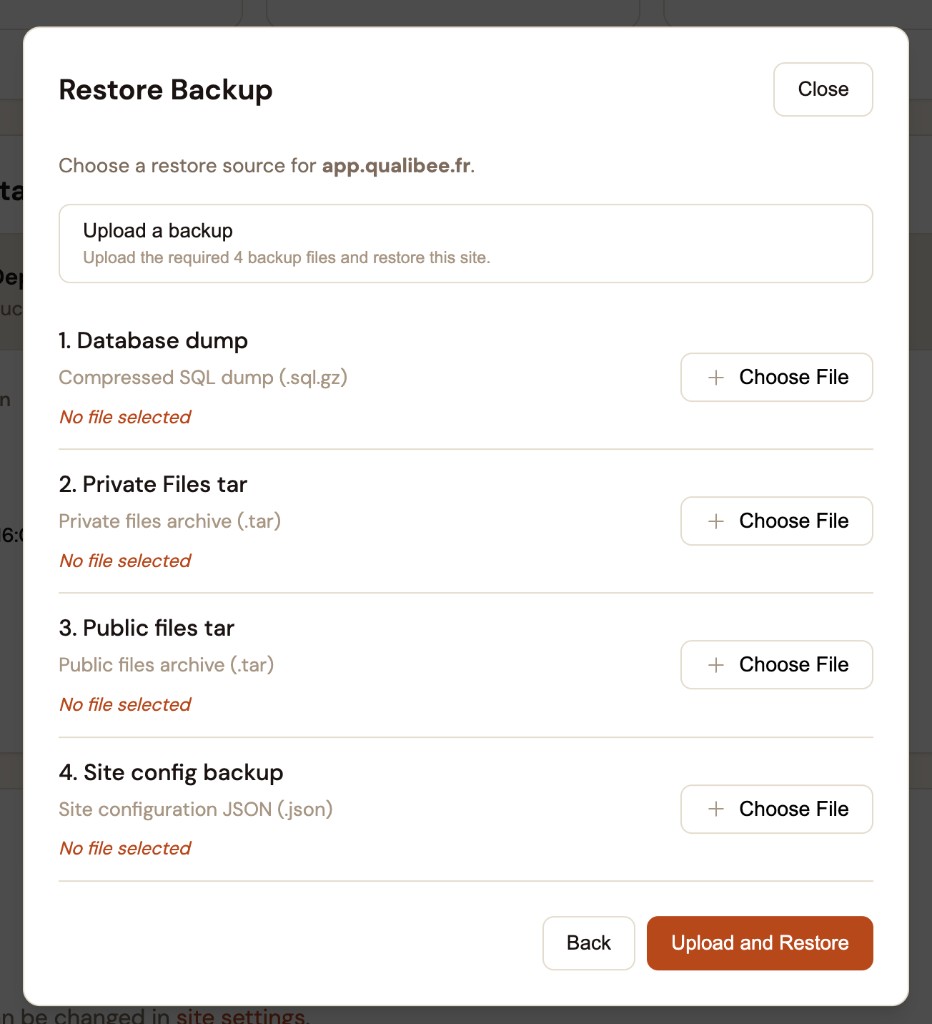
Espresso replaces the site's database, files, and configuration with the uploaded backup. The site may be briefly unavailable while the restore runs.
Restore overwrites current data
Restoring a backup replaces the live site with the snapshot contents. Any data created after that backup point will be lost. Take a Backup Now first if you might need the current state.
These are the standard Frappe backup files — the same ones produced by on-site Espresso backups, ERPNext S3 Backup Settings, or a manual bench backup. If your files are in S3, download them from your bucket first (see Offline Backup via S3).
Good to know
- Full site restore, not database-only. Espresso restores the database, private files, public files, and site config together — matching how Frappe expects backups to work.
- No SSH required. Everything runs through Site Management in the Espresso Cloud dashboard.
- Verify your backups. After enabling on-site backups or S3 uploads, confirm snapshots exist before you need them in an emergency.
- Off-site for disaster recovery. On-site snapshots live on the same server — download them or use S3 for copies you can reach if the server is lost.
Need help? Reach out at support@espresso.zimplify.tech with your site name and the backup date or error message you are seeing.